WE ARE FOOTBALL 2027 Controls and Menus: Every Screen Explained
WE ARE FOOTBALL 2027 controls, shortcuts, pause and speed keys, plus where to find the options, search, assistants, statistics and club hub screens.
Frequently Asked Questions
How do you pause the game in WE ARE FOOTBALL 2027?
What are the keyboard shortcuts in WE ARE FOOTBALL 2027?
Where do I save and load a career in WE ARE FOOTBALL 2027?
Can WE ARE FOOTBALL 2027 be played on a Steam Deck?
Almost every control question that circulates in forums is answered by the game itself — in a place nobody clicks by accident. WE ARE FOOTBALL 2027 ships an in-game Tutorial with tabs Spielablauf (how the game flows), Spieler (players), Steuerung (controls), Maus & Tastatur (mouse and keyboard), Steam Deck and Tipps zum Editieren (editing tips), and the full key binding list lives there. This page does two jobs: it copies out the bindings you actually need, and it maps every screen, so the next time you wonder where something is, you already know which icon to hover.
Where the key list lives: the Maus & Tastatur tab
Open that tab and you get three sub-tabs — Steam Deck, Normaler Maus, Tastatur — and below them a page headed Steuerung with the table Tastaturbelegung. Its three columns are Taste, Wo and Effekt, and the middle column is the useful part: the same key does not apply everywhere, it is bound to a screen type.
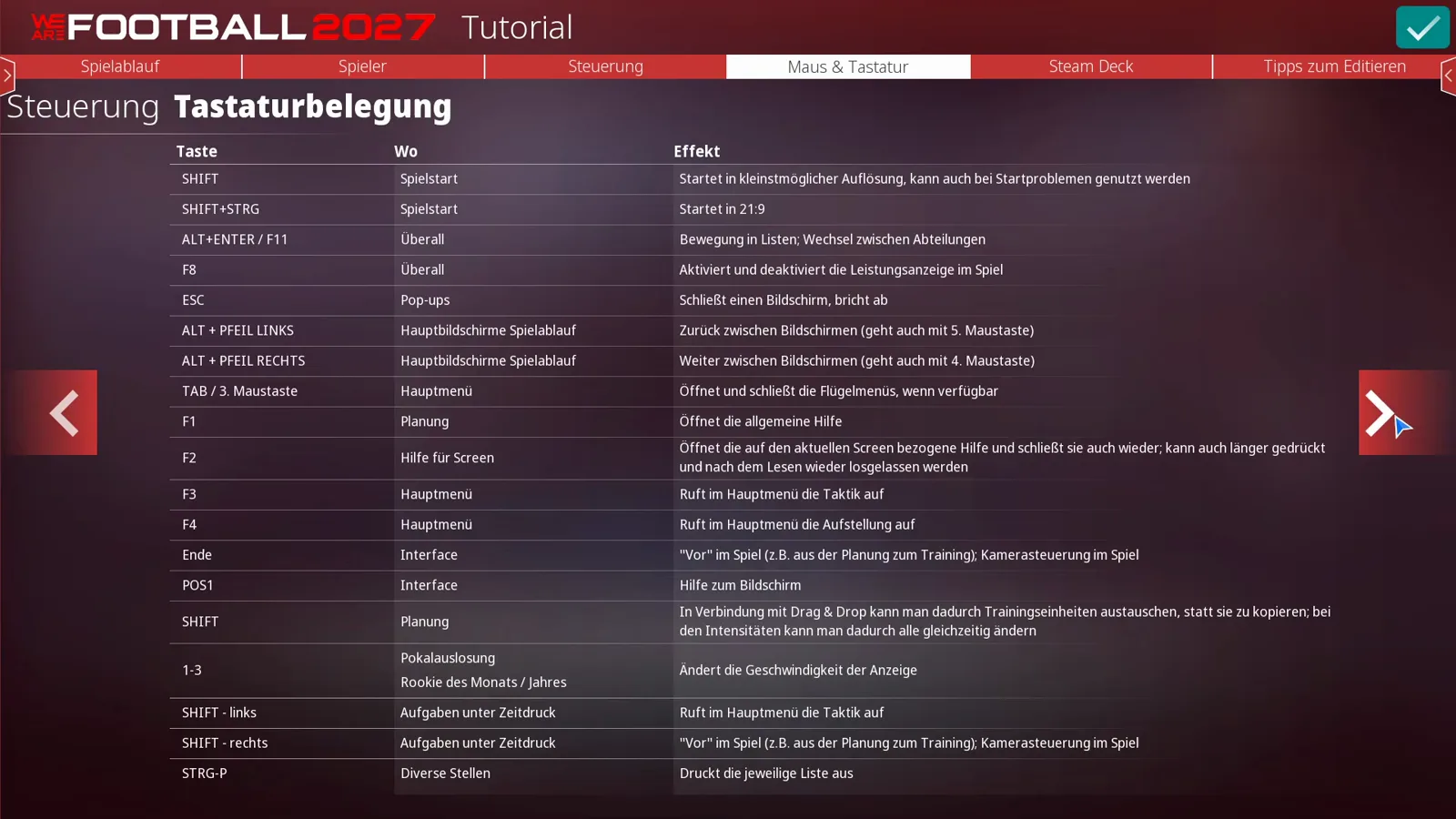
Copied out and ordered by how often you will use them:
| Key | Where | Effect |
|---|---|---|
| SPACE | week flow and match | pauses the game |
| TAB / 3rd mouse button | Hauptmenü | opens and closes the side menu when one is available |
| 4th / 5th mouse button | everywhere | jump one screen back or forward |
| Left / right arrow | everywhere | same screen stepping, without a fancy mouse |
| Up / down arrow | everywhere | switch between tabs |
| ESC | pop-ups | closes a screen, aborts an action |
| ALT + left / right arrow | main match-flow screens | back and forward between screens (also the 4th mouse button) |
| F1 | Planung | opens the general help |
| F2 | current screen | opens help for the page you are on; holding it lets you keep reading |
| F3 | Notizen | calls up your notes from the main menu |
| F4 | Hauptmenü | calls up the line-up from the main menu |
Three of those are the gestures people play twenty hours without discovering: stepping sideways through screens with the mouse, flipping tabs with the up and down arrows, and the two slide-out menus at the left and right edges of the screen.
Pause, speed and the two side menus
The Steuerung tab explains the three things that annoy most in live play. Spiel pausieren — “you can stop the week flow and the match at any time with SPACE” — and the second sentence is the trap: pressed during a match scene, the game halts at the end of the current minute, so a play with several participants can still finish. Vor und zurück — the fourth and fifth mouse buttons jump one screen forward and back, “which of course also works with the left and right arrow keys”, and the up and down arrows move between tabs. Flügelmenüs — “with the third mouse button you can open and close the side menus exactly as with TAB”.
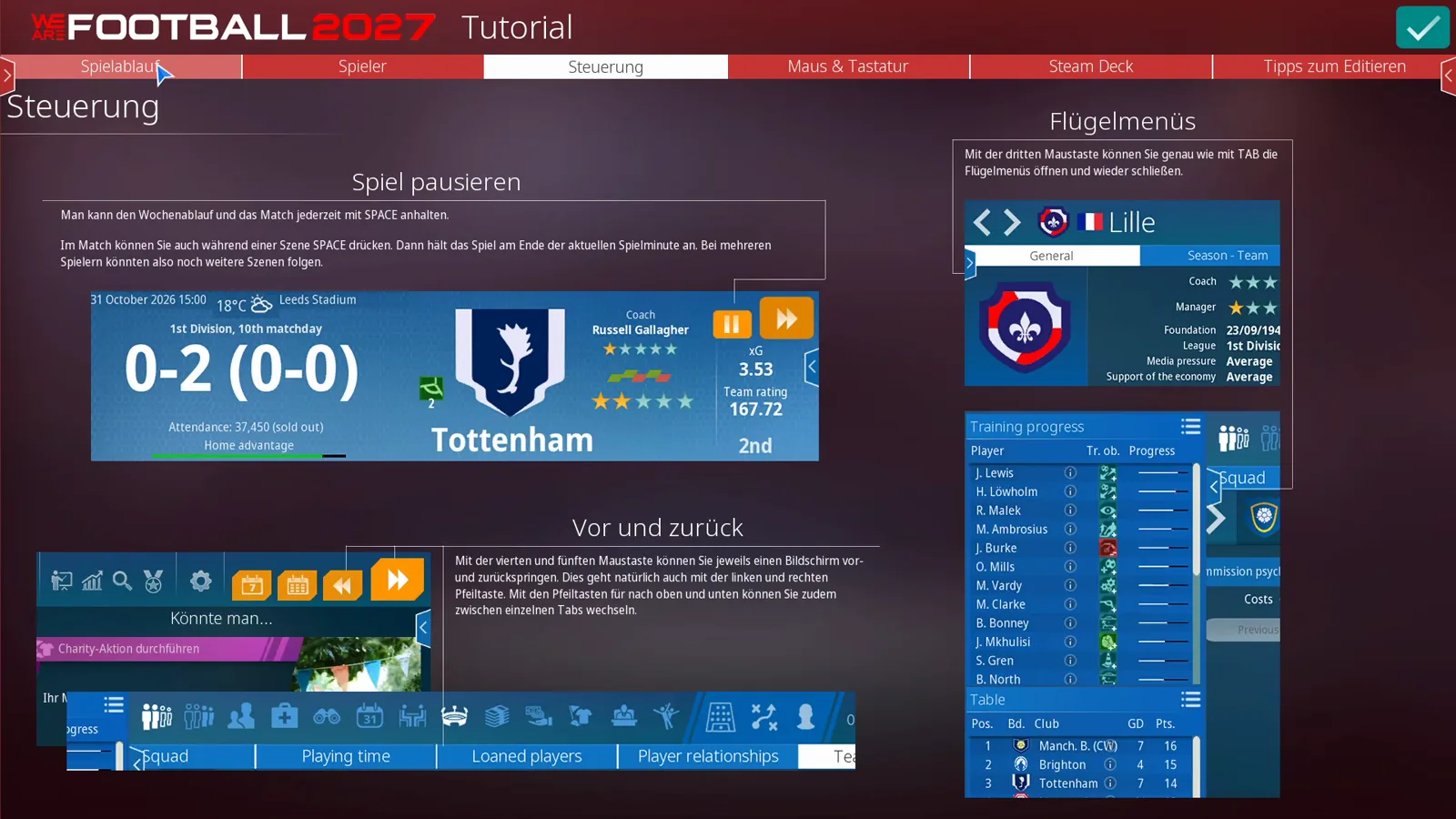
Top-right of the header bar sits the tempo block: two teal planner buttons and, behind them, the fast-forward switch. The left planner button opens the seven-day view, the right one the Jahreskalender (year calendar) with month tabs running July to June — the route the tutorial uses to reach the week planner when it is not already open. And because the game stacks three levels (tab, sub-page, back step), the presenter points out the back arrow at the top left as well: those three screens step forward and back, so a mis-click never costs you your place.
The icon bar is the map of the whole game
The top bar is the real navigation. Left to right: Zentrale (headquarters), then 1. Mannschaft (first team), 2. Mannschaft (second team), Jugend (youth academy), Medizin (medical), Transfers und Scouting, Organisation, HR, Infrastruktur, Finanzen, Sponsoring, Marketing, Vorstand (board) and Fans; then Aufstellung (line-up), Taktik (tactics) and your personal screen, followed by the in-game date. The help cluster closes the row — tutorial, assistants, statistics, countdown, search, achievements and the gear icon. Hover any symbol and a tooltip names it, clearly visible over the first icon in the screenshot below: Zentrale.
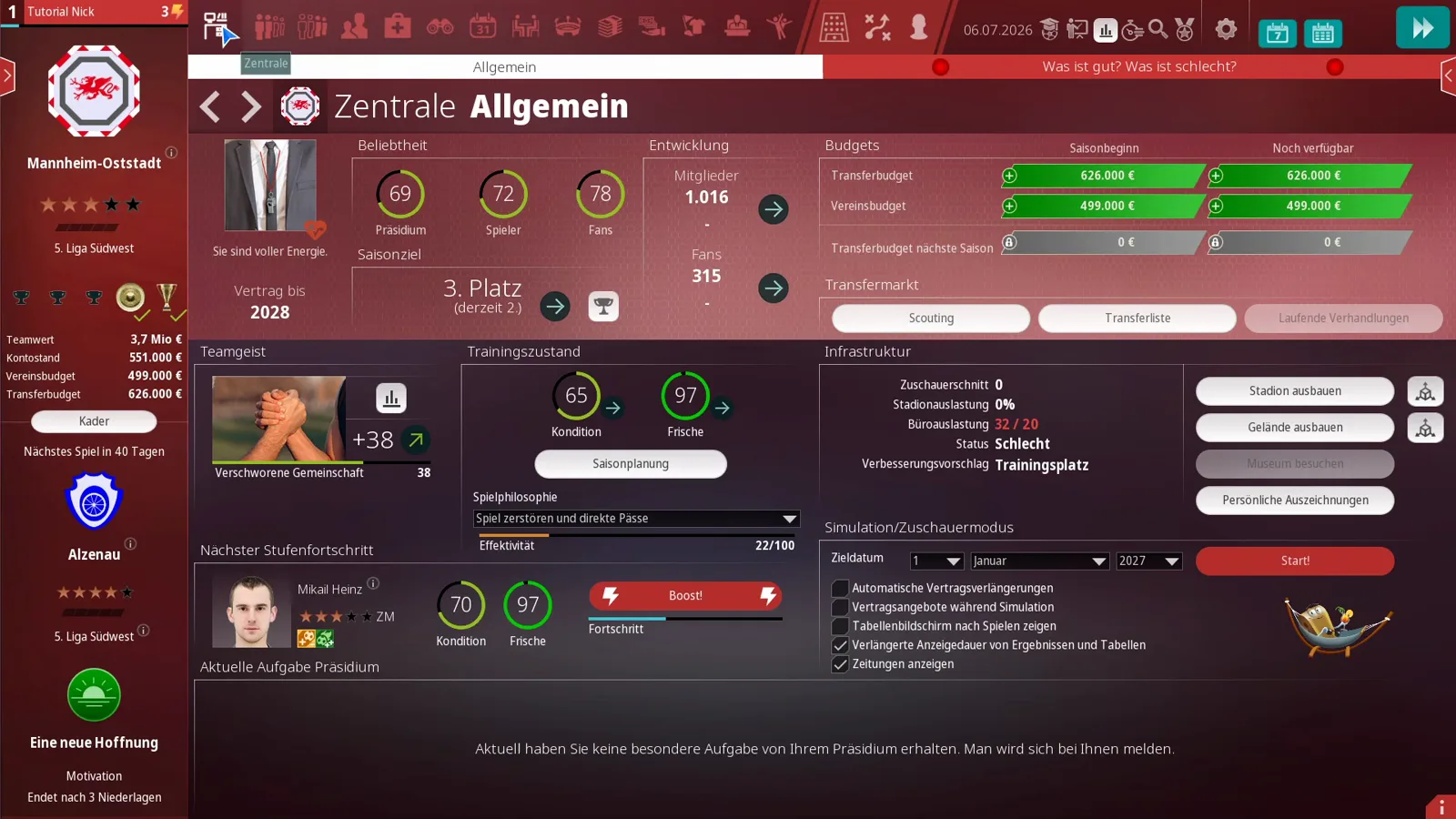
Beneath it, the club rail on the left edge is denser than it looks: crest, star row, league (“5. Liga Südwest”), trophy strip, then Teamwert 3,7 Mio €, Kontostand 551.000 €, Vereinsbudget 499.000 €, Transferbudget 626.000 €, a Kader button, the line Nächstes Spiel in 40 Tagen with the next opponent Alzenau and its rating, and at the bottom a card titled Eine neue Hoffnung subtitled Motivation with the condition Endet nach 3 Niederlagen — ends after three defeats. Two clicks are worth saving immediately: Scouting and the transfer list are buttons inside the Transfermarkt panel on this same screen, not somewhere else.
The hub itself reads in five blocks. Beliebtheit carries three rings — in the shot Präsidium 69, Spieler 72, Fans 78 — with Vertrag bis 2028 below. Those numbers are employment security, not decoration: below 50 with the board your job slowly turns critical, fans buy you a little more room down to 40 and sometimes 30, and once the players stop backing you, the team starts playing for your dismissal. Saisonziel shows the target place and the current one (“3. Platz (derzeit 2.)”) with a trend arrow — a target of 3rd against a current 10th and a downward arrow is the warning to take seriously. Entwicklung lists members (1,016) and fans (315) with direction arrows. Budgets separates the season opening figure from what is still available, and Transferbudget nächste Saison is greyed with padlock icons because the amount simply is not set yet; that flips at the winter window. Bottom right, Simulation/Zuschauermodus holds a target date, a Start! button and five checkboxes: Automatische Vertragsverlängerungen, Vertragsangebote während Simulation, Tabellenbildschirm nach Spielen zeigen, Verlängerte Anzeigedauer von Ergebnissen und Tabellen, Zeitungen anzeigen.
“Was ist gut? Was ist schlecht?” — the self-diagnosis screen
The second tab on the club hub is the most useful screen for a beginner and the most ignored by veterans. It opens three columns: Stärken (strengths), Schwächen (weaknesses) and Warnungen (warnings).
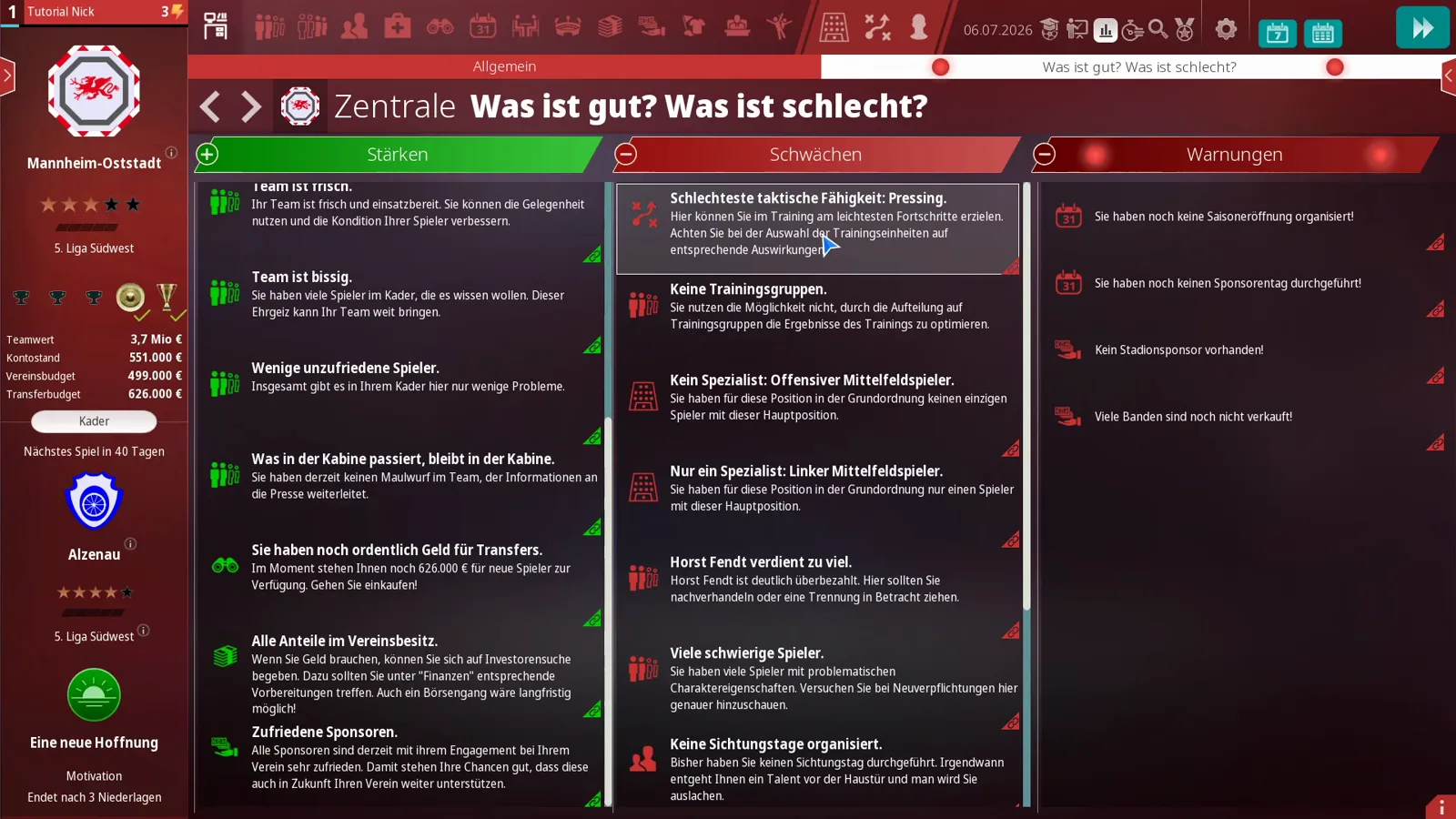
The entries are instructions, not statistics. Left column: “Team ist frisch”, “Team ist bissig”, “Wenige unzufriedene Spieler”, “Was in der Kabine passiert, bleibt in der Kabine”, “Sie haben noch ordentlich Geld für Transfers”. Middle: “Schlechteste taktische Fähigkeit: Pressing”, with the note that this is where training earns progress fastest, “Keine Trainingsgruppen” (you are not splitting the squad into training groups), “Kein Spezialist: Offensiver Mittelfeldspieler”, “Horst Fendt verdient zu viel”, “Keine Sichtungstage organisiert”. Right: “Sie haben noch keine Saisoneröffnung organisiert!”, “Sie haben noch keinen Sponsorentag durchgeführt!”, “Kein Stadionsponsor vorhanden!”, “Viele Banden sind noch nicht verkauft!”. The tutorial’s reading is simple: warnings mean now, weaknesses mean when you get a chance, and a newcomer should work the list top to bottom until it is empty — how full that list is, is effectively your difficulty setting. That “Keine Trainingsgruppen” line is also the front door to our training plan guide, and what “bissig” and “unzufrieden” do to a dressing room is worked through in the morale and satisfaction guide.
Options, save and load all hide behind one gear
The gear icon at the right end of the bar is, in the tutorial’s words, “the most important button”, for three reasons: this is where you save, where you load, and where graphics, sound and gameplay settings live. Seven tabs: Gameplay, Grafik und Sound, Spiel speichern, Spiel laden, Hilfe, Feedback, Spiel beenden.
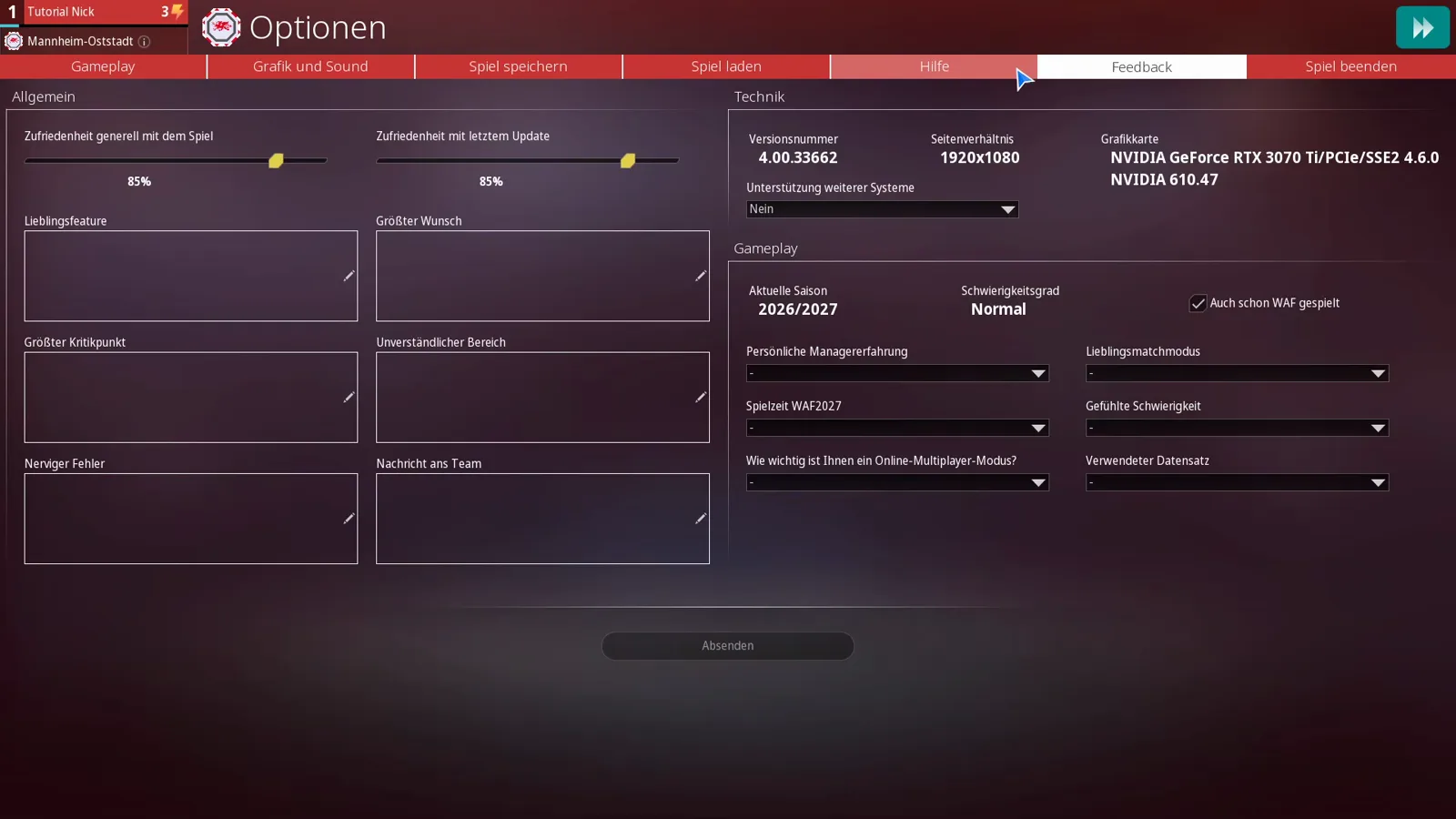
The Feedback tab is the most informative screen in the whole menu, because it prints your own technical situation beside the survey. Its Technik block shows the version number (here 4.00.33662), the aspect ratio 1920x1080, the detected graphics card, and the line Unterstützung weiterer Systeme — answered Nein, which is the straight reply for anyone asking whether Mac or Linux run this game. Below it the Gameplay block records the current season (2026/2027), the difficulty (Normal), an Auch schon WAF gespielt checkbox, personal manager experience, favourite match mode, Spielzeit WAF2027, felt difficulty, how important an online multiplayer mode is to you, and which Verwendeter Datensatz the save runs on — the fastest way to check whether you are on the standard or the world database, a choice explained in the database choice guide. On the left, the same screen asks two satisfaction sliders (Zufriedenheit generell mit dem Spiel and Zufriedenheit mit letztem Update) and gives you six free-text boxes: favourite feature, biggest wish, biggest criticism, least understandable area, most annoying bug, and a message to the team, sent with Absenden.
Quick search: one field, players and clubs
The magnifier opens Schnellsuche with a Suchen in field and a hit counter. Results arrive in two tables: players on top with columns Name, Alt., Nat., HP, Tal., Stufe, Fu., Char., Fähigkeiten, Verein, Marktwert, clubs below with Letzte Spiele, S, U, N, Tore, Punkte, Teamstärke, Marktwert Team.
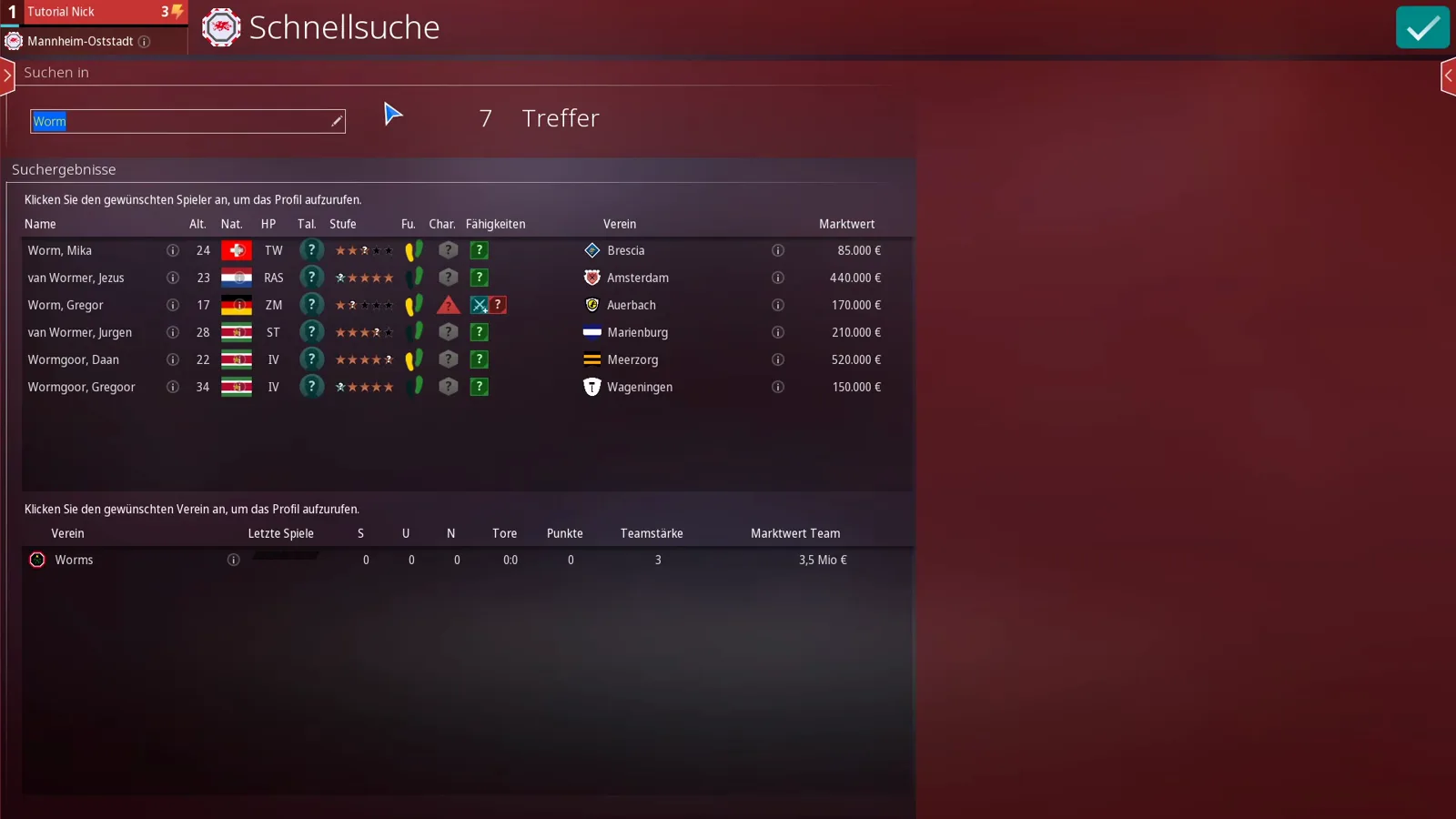
This is the tool that frustrates people, because it matches substrings rather than names: the screenshot shows the query Worm returning seven hits — Worm, Mika (TW, Brescia, 85,000 €), van Wormer Jezus, Worm Gregor, van Wormer Jurgen, two Wormgoors — plus the club Worms at team strength 3. The tutorial’s own verdict is honest uncertainty about whether search is now dependable: with one database a query for “Paris” returned a result, with another it returned nothing. Practical rule: search a surname fragment rather than a full name, and if nothing comes back, the complete lists in the statistics hub two sections down are the more reliable route.
Assistants: hand the clicking over
The assistants button, right next to the tutorial icon, opens a switchboard grouped by responsibility, and every single line has its own toggle.
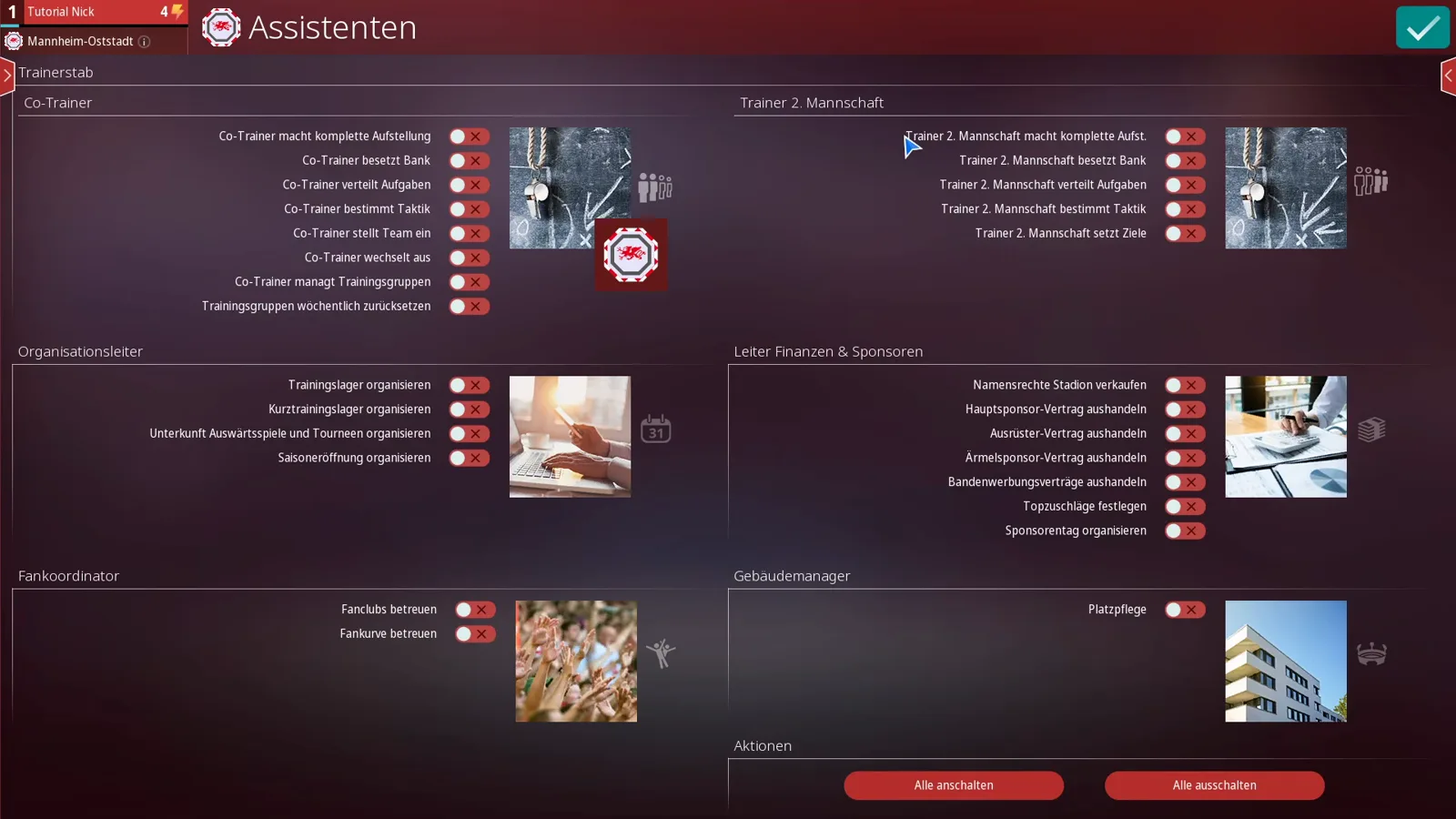
Co-Trainer: makes the complete line-up, stocks the bench, distributes tasks, sets tactics, sets the team up, makes substitutions, manages the training groups — plus a separate switch to reset the training groups weekly. Trainer 2. Mannschaft: complete line-up, bench, tasks, tactics, sets objectives. Organisationsleiter: organises training camps, short training camps, accommodation for away games and tours, and the season opening. Leiter Finanzen & Sponsoren: sells stadium naming rights, negotiates the main sponsor, kit supplier and sleeve sponsor deals and advertising-board contracts, sets top surcharges, organises the sponsor day. Fankoordinator: looks after fan clubs and the supporter stand. Gebäudemanager: pitch care. Along the bottom, Alle anschalten and Alle ausschalten.
The tutorial’s recommendation is a clean cut: hand over task distribution, the complete line-up and the bench, but set tactics and objectives yourself. Its stated benefit is narrow and honest — in league operation you no longer have to re-check the line-up every time an injury lands. Delegate nothing and you keep doing it by hand. For the personnel side of those switches — competence stars, diligence and how busy each department is — see the staff and HR guide.
Statistics hub: everything the normal screens do not show
The statistics button opens the Statistikzentrale, and it is enormous. Top left, Favoriten with a category and a statistic column (in the shot Spieler → Beste Spieler, Tabellen → Tabelle); below, the Vollständige Liste with a continent dropdown (here Europa) and topic blocks — Aktueller Verein with progress, second-team progress, Fortschritte Jugend (youth progress) and greatest training favourite of all time; Vereine with appearances, scorers, ratings, results, bogey teams, favourite teams, former youth players, promoted players, nationalities, transfers, record scorers, record players; Spieler with top scorers, assists, top scorers overall, multi-scorers, home and away goals. Four filters line the bottom edge: Land, Liga, Verein, Saison.
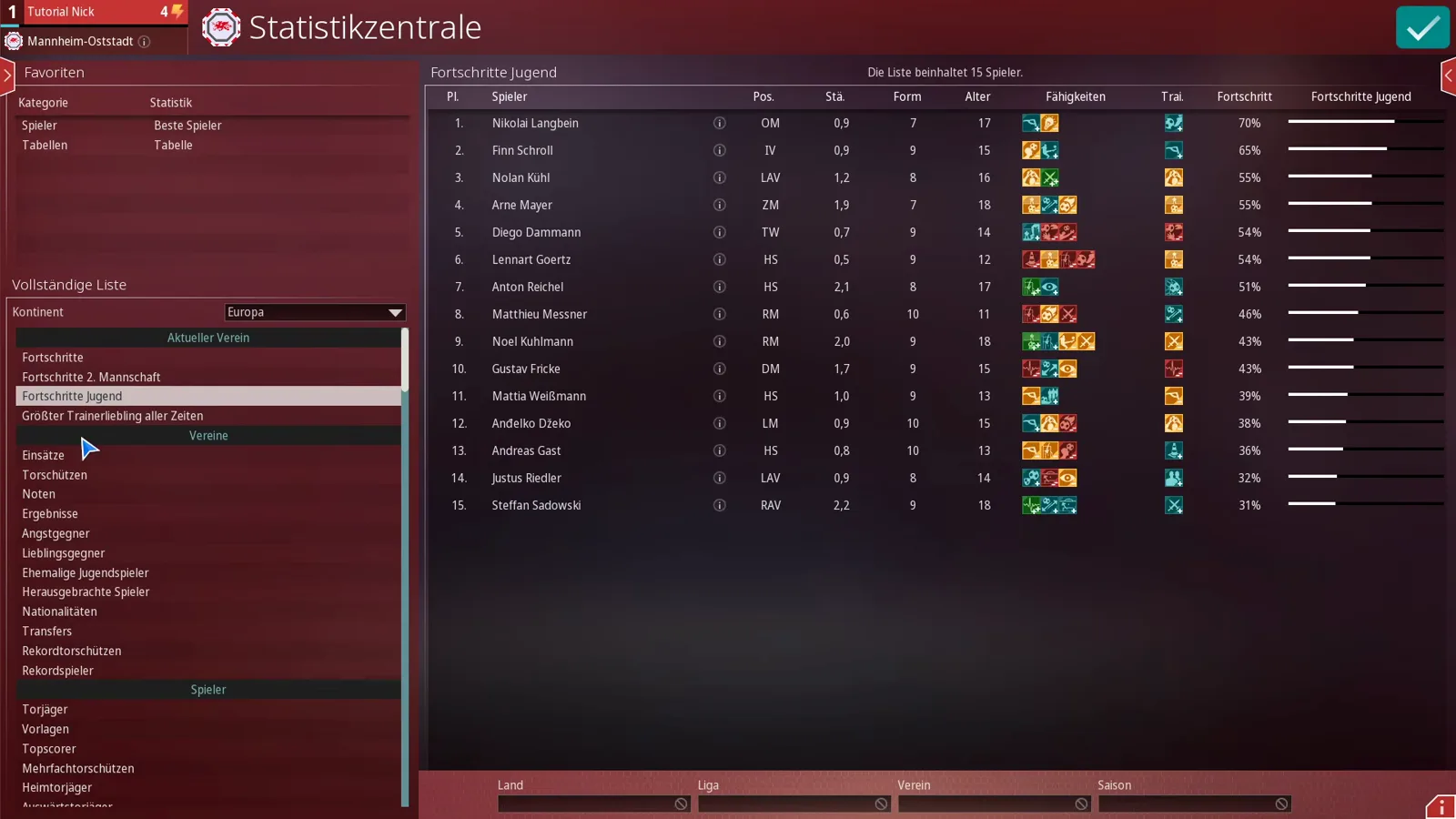
On the right sits the table itself — here fifteen youth players with Pl., Spieler, Pos., Stä., Form, Alter, Fähigkeiten, Trai., Fortschritt and a progress bar, the fastest way to see who is about to force his way into the first team, ahead of anything in the youth camps guide. Three notes from the tutorial worth knowing: you can pin tables such as the league table to the top so they are one click away from anywhere; lists stop at 100 entries, “then it is over”; and nearly everything can be printed or exported to Excel or PDF. The presenter uses the hub mostly to scout the league from outside — best players, strongest and most valuable clubs, attendances — and reports one gap: in his view Borussia Dortmund’s trophies were missing from the club statistics, which he suspects is a database bug rather than a display fault. Two small sibling screens sit in the same bar: the countdown button with deadlines such as “4 days until season ticket sales begin” or “725 days until the contract ends”, and achievements, whose points feed the manager level — both account-level rather than club-level, as the career mode guide explains.
If you are setting these screens up for the first time, the path from Steam launch through language choice to database scope is walked step by step in the installation and first-setup guide, and the ten difficulty lines that sit behind the first match are in the difficulty settings guide.
Related Guides
guides
WE ARE FOOTBALL 2027: Career Mode & Game Modes Explained
Realistischer Modus vs Kreativmodus, the six career starting points, and what a week, a transfer window and a season in a real save look like.
guides
WE ARE FOOTBALL 2027: Difficulty Settings and Career Start Options
All ten WE ARE FOOTBALL 2027 difficulty lines explained: presets, budgets, transfer market, scouting, job security, injuries, fines, start country and contract.
guides
WE ARE FOOTBALL 2027: Install, First Launch & New-Game Setup Guide
How to install WE ARE FOOTBALL 2027 on Steam and start your first save: language choice, database scope, manager creation, difficulty and club selection.
Was this helpful?
Thanks for the feedback!